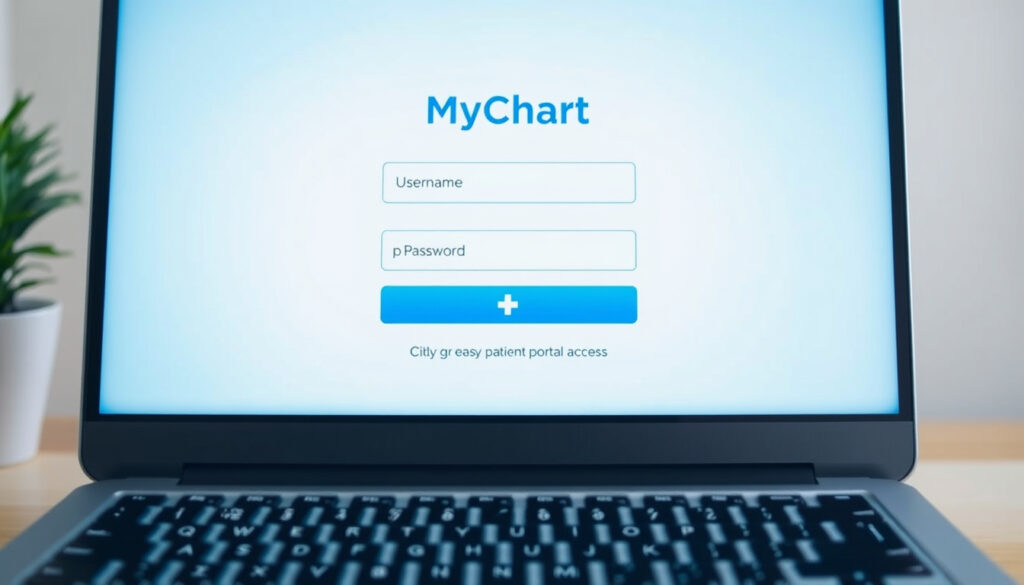
UHN Portal Sign In Guide: myUHN MyChart Login Steps
If you’ve ever left a UHN appointment wishing you’d grabbed one more look at your lab results before heading home, you’re not alone. The myUHN Patient Portal gives you secure, around-the-clock access to your health records, upcoming appointments, and test results from anywhere.
Operator: University Health Network · Primary Location: Toronto · Main Access Point: mychartprd.uhn.ca · Support Hours: 9AM – 5PM EST · Key Features: Health records, appointments, lab results
Quick snapshot
- Login via MyChart Login Page
- Activation code valid for 24 hours (myUHN Quick Start Guide PDF)
- Two-step verification code entry window is 20 minutes (Two-Step Verification Tips Sheet)
- Access via www.myUHN.ca or MyChart app on iOS/Android (myUHN FAQ)
- Exact implementation date for mandatory two-step verification
- Specific phone/email contact details for myUHN Support beyond in-portal messaging
- Detailed deactivation or account recovery workflow
- Mobile app updates expected as part of MyChart platform evolution
- Expanded proxy access options potentially simplifying family caregiver login
- myUHN Patient Portal YouTube video tutorials
- myUHN Facebook help monitored 9AM-5PM EST
- In-portal messaging once logged in (myUHN Quick Start Guide)
This table summarizes the key official resources and specifications for the myUHN Patient Portal.
| Item | Detail |
|---|---|
| Official Login URL | mychartprd.uhn.ca/MyChartPrd/Authentication/Login |
| About Page | www.uhn.ca/PatientsFamilies/myUHN |
| Viewer Tool | olisviewer.uhn.ca |
| Tutorial Video | www.youtube.com/watch?v=UxigqwDIR8g |
| Social Support | www.facebook.com/myUHNPortal |
| Activation Code Validity | 24 hours |
| Two-Step Code Window | 20 minutes |
| Two-Step Status | Mandatory |
| Platform | MyChart (Epic Systems) |
| App Availability | iOS and Android |
How do I sign in to myUHN MyChart?
Signing in to myUHN requires navigating to the official authentication portal and completing a mandatory two-step verification process. This applies to every login, whether you’re accessing from a desktop browser or a mobile device.
Access the login page
The direct login address is MyChart Authentication Portal (UHN). You can also reach the portal via UHN Official myUHN Page, which links to the same MyChart login. Bookmarking the direct URL saves you a step on repeat visits.
Enter credentials
On the login page, enter your myUHN username and password, then click Sign In. You’ll be prompted to enter a verification code sent to your registered email or mobile number. This code must be entered within 20 minutes per UHN Two-Step Verification Tips Sheet.
Complete two-step verification
During first login with two-step verification, you select whether to receive codes by email or text message (Two-Step Verification Tips Sheet). On subsequent logins from the same browser, you can check “Trust This Device” to skip verification for up to a year, though new devices or browsers will require the full process again.
Two-step verification is not optional — UHN requires it for all accounts to protect personal health information. If you’re locked out of your registered email or phone, you’ll need to contact myUHN Support through the portal once logged in with an alternative method.
What is the UHN patient portal?
The myUHN Patient Portal is a secure online platform powered by MyChart technology that gives UHN patients access to their personal health records from any internet-connected device.
Overview of myUHN features
myUHN provides secure access to health records, appointments, and lab results for UHN patients (UHN Official myUHN Page). You can view upcoming appointment details, check recent test results, download records to share with other providers, and message your care team for non-urgent questions.
Who can use it
The portal serves patients across all UHN sites in Toronto, accessible on computer, smartphone, or tablet (Toronto Western Family Health Team). Affiliated clinics like the Toronto Western Family Health Team also offer myUHN access for UHN site data. Proxy access is available for caregivers with explicit patient permission, requiring completion of a sign-up process from an invitation email (myUHN Quick Start Guide PDF).
Registration process
To request an activation code online, go to myUHN.ca, click Sign Up Now, then Sign Up Online, and enter Name, Date of Birth, MRN or OHIP number, and Email Address (myUHN Quick Start Guide PDF). An instant activation code can also be generated by UHN staff with patient consent during an in-person visit (myUHN Patient Brochure PDF). The activation code must be used within 24 hours of receipt.
OHIP and MRN identifiers are required for myUHN registration specifically because myUHN is tied to the Ontario public healthcare system. Patients outside Ontario or without OHIP coverage may not be eligible for self-service registration and should contact UHN directly.
How do I use the UHN Portal app?
For patients who prefer managing health records on a phone or tablet, the MyChart app offers full myUHN functionality in a mobile-optimized interface.
Download and install
Search your device’s app store for “MyChart” and install it. During setup, search for “University Health Network” and select the UHN logo when prompted (YouTube: How to Download MyChart App (2025)). App download requires agreeing to privacy policies and enabling notifications for appointment reminders.
App login steps
Open the MyChart app, select UHN as your healthcare provider, then log in with your myUHN username and password. The app triggers the same two-step verification process as the web portal — you’ll receive a code via your registered email or phone and must enter it within the 20-minute window.
App vs web differences
The MyChart app mirrors most web portal functions including viewing lab results, scheduling appointments, and messaging care teams. However, some features like printing full health records may work more smoothly on desktop. Both platforms share the same login credentials and two-step verification requirements.
Mobile convenience comes with device-dependency for two-step verification — if you lose access to your registered phone or email while traveling, you may need to rely on in-portal messaging to UHN Support rather than self-service recovery.
Patients choosing mobile access should keep their registered contact information current to avoid being locked out when verification codes can’t reach them.
What is UHN email login?
UHN email login refers to the authentication credentials tied to your myUHN patient portal account, not a separate corporate email system used by UHN staff. The term commonly appears in search queries from patients trying to understand how their portal credentials work.
Email login process
During myUHN registration, you provide an email address that becomes your recovery contact and the destination for activation links. This email address is separate from any hospital staff email — it’s used solely for patient portal communications. Verification code delivery options include email or text message (Two-Step Verification Tips Sheet PDF).
Toronto-specific access
University Health Network is based in Toronto, Ontario, Canada (UHN Official myUHN Page). The myUHN portal is designed primarily for patients receiving care at UHN sites in the Greater Toronto Area, though remote access works from any location with internet connectivity.
Troubleshooting common issues
If you forget your password, use the “Forgot Password” link on the login page to request a reset email. For issues with two-step verification codes not arriving, check that your registered email and phone are current by logging in and updating your contact preferences under account settings. If your activation code expires before use, you’ll need to request a new one through the standard sign-up process.
Activation codes expire after 24 hours — if you request a code but don’t complete registration in time, you’ll need to start the process again. UHN staff can generate instant activation codes from a patient’s chart with patient permission, but this still carries the same 24-hour validity window.
How do I get support for myUHN login?
UHN offers multiple support channels for patients experiencing login difficulties, ranging from self-service video tutorials to direct social media assistance.
Two-step login video guide
The official YouTube channel provides step-by-step video walkthroughs for logging in with two-step verification (YouTube: How to Log in using Two-Step Verification). A companion video covers app download and setup for 2025 (YouTube: How to Download MyChart App (2025)). The full tips playlist is available at myUHN Portal Tips Playlist.
Social support channels
The myUHN Facebook Page is monitored by UHN staff Monday through Friday, 9AM to 5PM EST. This offers a quick option for basic login questions without requiring portal access.
Contact options
Once logged into the portal, you can send a secure message to myUHN Support directly through the messaging feature (myUHN Quick Start Guide PDF). This is the recommended path for account recovery, password reset issues, or registration problems that persist after reviewing official documentation.
The most effective support channel — in-portal messaging — requires you to already have a working login. If you’ve lost access to your registered email or phone, you’re effectively locked out of self-service recovery and must contact UHN through social media or during a clinic visit.
myUHN Login Steps: A Quick Reference
Four key steps, one pattern: the login process prioritizes security through mandatory two-step verification at every session.
This reference table shows the four steps to complete a myUHN login with their official sources.
| Step | Action | Source |
|---|---|---|
| 1 | Navigate to mychartprd.uhn.ca/MyChartPrd/Authentication/Login | MyChart Login Page |
| 2 | Enter username and password, then click Sign In | myUHN Quick Start Guide |
| 3 | Check email or phone for verification code; enter within 20 minutes | Two-Step Verification Tips |
| 4 | Optionally check “Trust This Device” to skip verification on future logins from same browser | myUHN YouTube Tutorial |
The implication: Toronto patients who use the “Trust This Device” option still need to re-complete two-step verification if they switch browsers or devices.
What UHN Says About Portal Access
“Two-Step Verification is now a mandatory step to log into myUHN Patient Portal (myUHN) accounts. This is to enhance the security of your account.”
— UHN Official Website
“With myUHN, you can access your personal health record anywhere, anytime on a computer, smartphone or tablet.”
— UHN Patient Brochure
Confirmed Facts vs. What Remains Unclear
Confirmed facts
- Login portal is mychartprd.uhn.ca/MyChartPrd/Authentication/Login
- Activation codes expire after 24 hours
- Two-step verification code must be entered within 20 minutes
- Two-step verification is mandatory for all accounts
- App available for iOS and Android via MyChart
- Proxy access requires patient permission and invitation email sign-up
- New browsers/devices require full two-step verification even on trusted devices
What remains unclear
- Exact date when mandatory two-step verification was introduced
- Specific phone number or direct email for myUHN Support
- Full details on account recovery process when all recovery options fail
- Whether annual device re-verification is enforced automatically or requires manual re-setup
Related reading: Nexus U of W Login Guide for University of Winnipeg · Symptoms of Kidney Disease – Early Signs and Stages
uhhospitals.org, youtube.com, uhn.ca, uhn.ca, uhnprintshop.myprintdesk.net
Frequently asked questions
How do I reset my myUHN password?
Use the “Forgot Password” link on the login page at mychartprd.uhn.ca/MyChartPrd/Authentication/Login. You’ll be prompted to enter your registered email, and a reset link will be sent to complete the process.
Is the UHN portal available 24/7?
Yes. The myUHN portal is accessible 24 hours a day, 7 days a week from any internet-connected device. Support response via in-portal messaging is available during UHN business hours.
Can I access UHN portal from outside Toronto?
Yes. As long as you have your login credentials and access to your registered email or phone for two-step verification, you can access myUHN from any location worldwide.
What browsers work best for UHN sign in?
myUHN supports all modern browsers including Chrome, Safari, Firefox, and Edge. For the best experience and security, keep your browser updated to the latest version.
How do I print my health records securely?
After logging in, navigate to the Health Records section, select the documents you want, and use the browser print function. UHN advises: “Protect the personal health information you print.” Downloaded records are your responsibility to store securely.
Does UHN portal support multiple accounts?
Individual patients cannot manage multiple myUHN accounts under different identities. However, proxy access allows a caregiver with your permission to access your account information through their own login.
What if two-step verification fails?
If you don’t receive a code within a few minutes, check that your registered email and phone are correct in your account settings. Codes expire after 20 minutes — if yours expires, request a new one. For persistent issues, contact myUHN Support via in-portal messaging or through the Facebook page during business hours.
More related posts
 Samuel de Champlain Provincial Park – Camping Fees and Guide 2026
 Richard Simmons: Death, Estate & Diane Sawyer Documentary
 CRA Benefits December 2025: Payment Dates & Fact Check
 Colonel Sanders: KFC Founder’s Second Act
 49ers vs Tampa Bay Buccaneers Match Player Stats – Oct 12 2025
 Paul McCartney Tour 2025: Dates, Tickets & Setlist
 How It’s Done Lyrics – HUNTRIX Full Text with Chords